Best 14+ Screen Recording Tools in 2026
Last Updated: August 28, 2026
Capturing what is happening on your screen is essential for tutorials, demos, and bug reports. Screen Recording tools capture high quality video of your screen, often with webcam overlay and built in editing features included.
These tools are a staple for trainers, support teams, and content creators producing tutorials, walkthroughs, or product demos. Simple capture combined with quick sharing options makes it easy to explain something visually instead of writing it out.
 Screen Charm
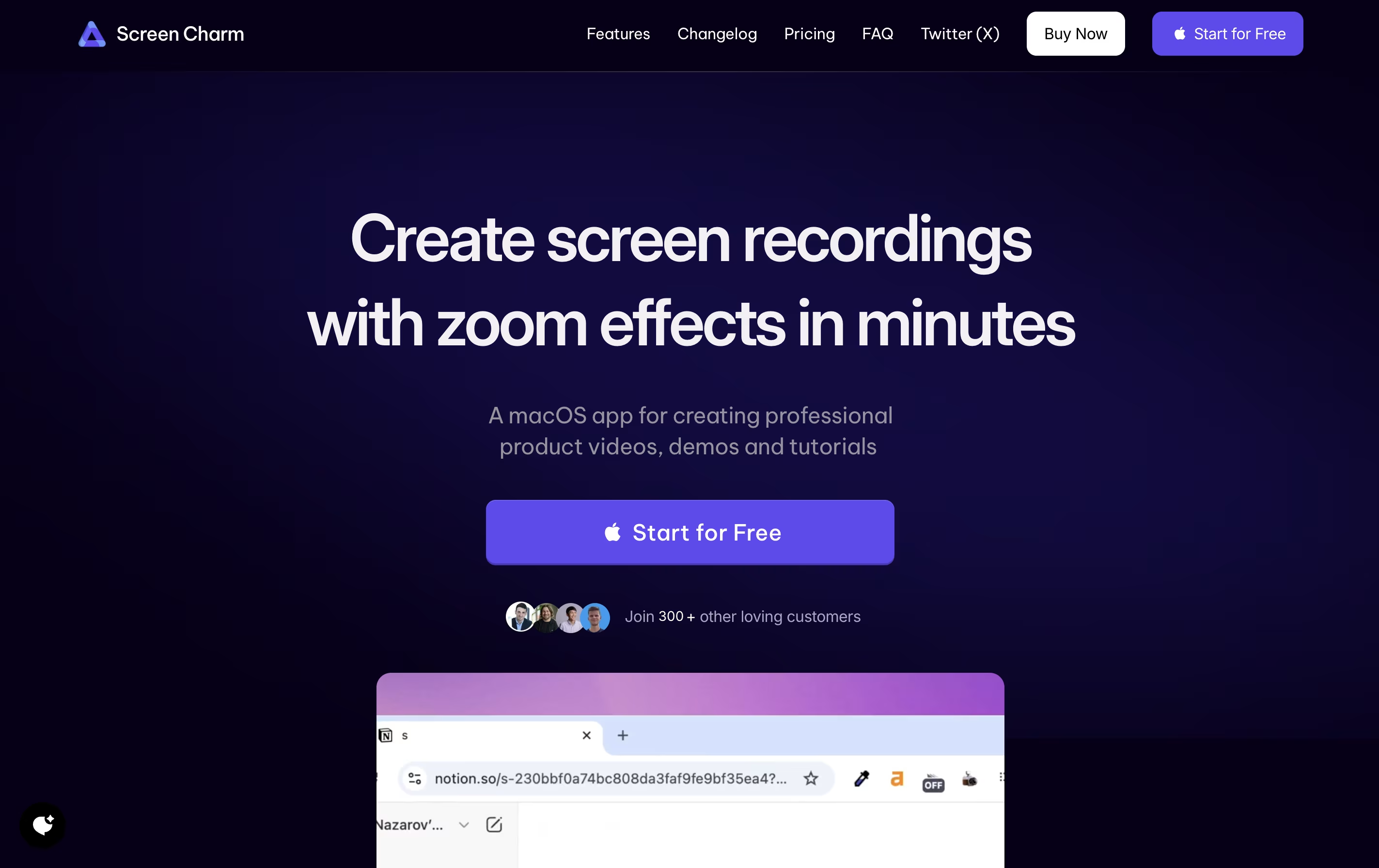 Screen CharmMac Screen Recorder with Auto-Zoom,
  Loom
Loom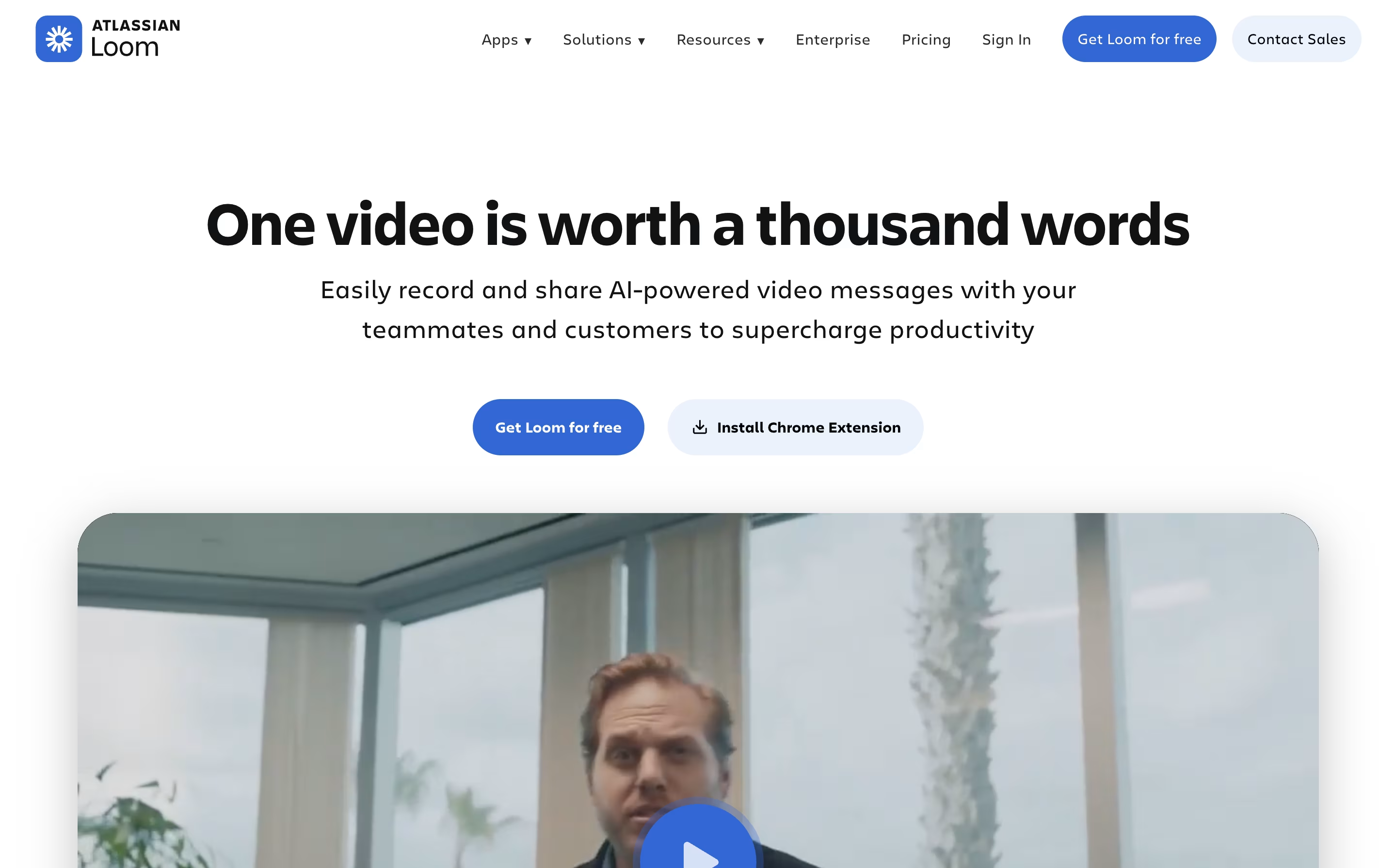 LoomEasy Video Messaging for Teams, and
  VEED
VEED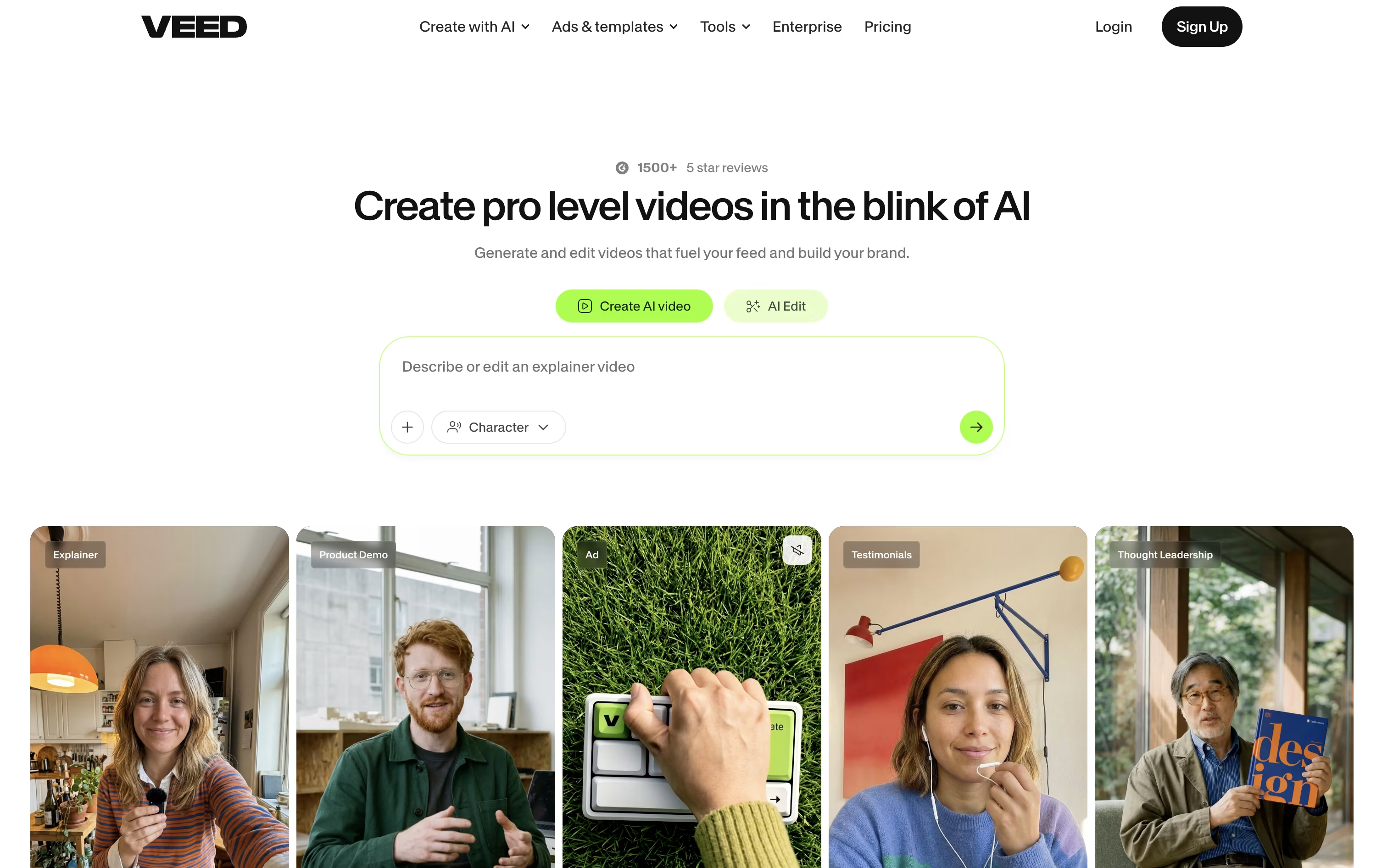 VEEDAI-Powered Online Video Editing Platform are the best for Screen Recording. So, let’s take a closer look at all 14+ tools.

Screen Charm is a desktop application built exclusively for macOS that records your screen with professional polish. It captures your screen activity, microphone audio, and system sounds all at once, eliminating the need for complicated setups.
The standout feature is its smart zoom effect. As you move your cursor or click, the recording automatically zooms in to highlight what you're showing. This keeps viewers focused on the important parts without manual editing later.
You can also add your webcam feed with custom backgrounds, making your tutorials more personal and engaging. The built-in editor lets you trim clips and add text overlays right after recording. Everything exports in stunning 4K quality or any resolution you choose.
Loom is a tool that lets you create video messages by recording what's on your screen along with your voice and face. It's different from video calls because people can watch your message whenever it's convenient for them, without needing to schedule a meeting.
When you record with Loom, it saves the video to the cloud right away and creates a link you can share. The person watching can leave comments on specific parts of your video, making feedback easy and clear. Loom works through a Chrome extension, desktop app, or mobile app.
The platform includes smart AI features that automatically remove pauses and filler words from your videos, add titles and summaries, and create written versions of what you said. This makes your videos more professional without extra effort.
VEED helps you make a video by typing a prompt, recording your screen, or uploading a clip, then lets AI handle the heavy editing work.
The AI Agent understands natural language, so requests like generate B-roll or make this fit TikTok get carried out automatically, while Edit with Script turns editing into simply deleting words from a transcript.
Every account, including the free one, gets auto subtitles and access to the full stock media catalog through Gen-AI Studio.
Creator starts the paid tiers at $20 a month, or $10 a month if billed yearly, and removes the watermark from exports.
Stepping up to Pro at $44 a month brings multiple Brand Kits, translation into more than 50 languages, and up to 12 hours of AI voice a month, and Studio at $70 a month multiplies the credits and adds Custom Templates.
Larger teams can move to Enterprise for custom pricing, centralized team management, and privacy controls.
Rather than dragging clips along a timeline, Descript lets you edit video and audio the same way you would edit a document. It transcribes your recording automatically, and any change you make to the text carries over to the media itself.
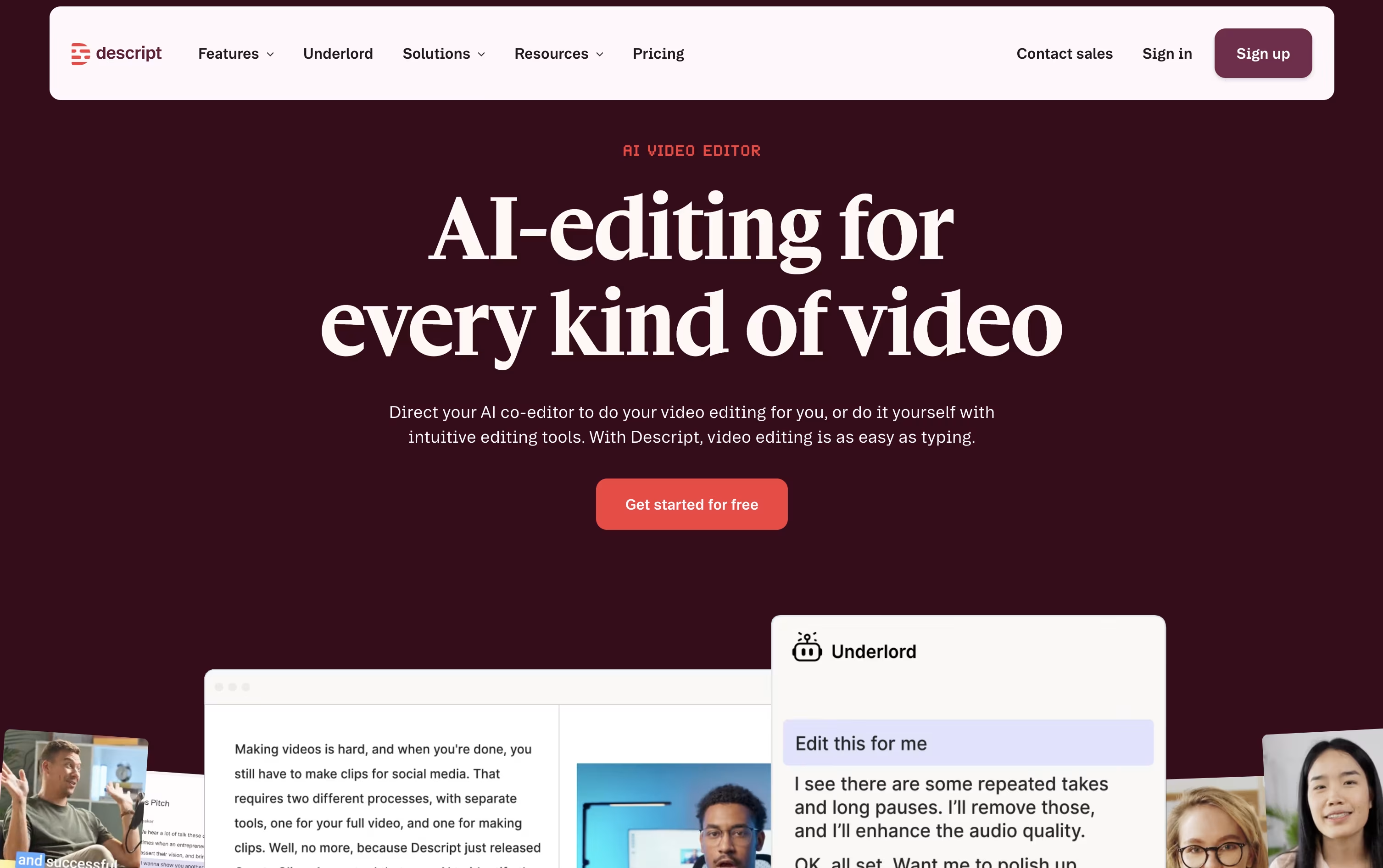
AI does a lot of the heavy lifting. Studio Sound smooths out rough audio, Remove Filler Words trims the ums and awkward pauses, and Eye Contact adjusts your gaze so you always appear to be looking at the camera. For bigger jobs, Underlord acts as an AI co-editor that can caption, clip, or restructure a project based on plain instructions.
Getting started costs nothing. The Free plan includes 1 hour of media monthly, 100 AI credits as a one-time allowance, and 720p exports.
From there, Hobbyist costs $24 per person each month and brings 10 media hours, 400 monthly AI credits, and watermark-free 1080p video. Creator, the plan most people pick, is $35 a month and opens up 4K output, full access to Underlord, and more than 20 AI tools. Business is built for teams at $65 a month, adding shared branding tools, dubbing with proofreading in over 30 languages, and priority support with a service guarantee.
Larger organizations can move to Enterprise, which uses custom pricing along with added security controls like single sign on and audit logs.

Cap is a screen recording application that offers two recording modes for different needs. Instant Mode lets you record and share immediately with automatic transcription and chapter generation. Studio Mode provides local recording with a full editing timeline for professional content creation.
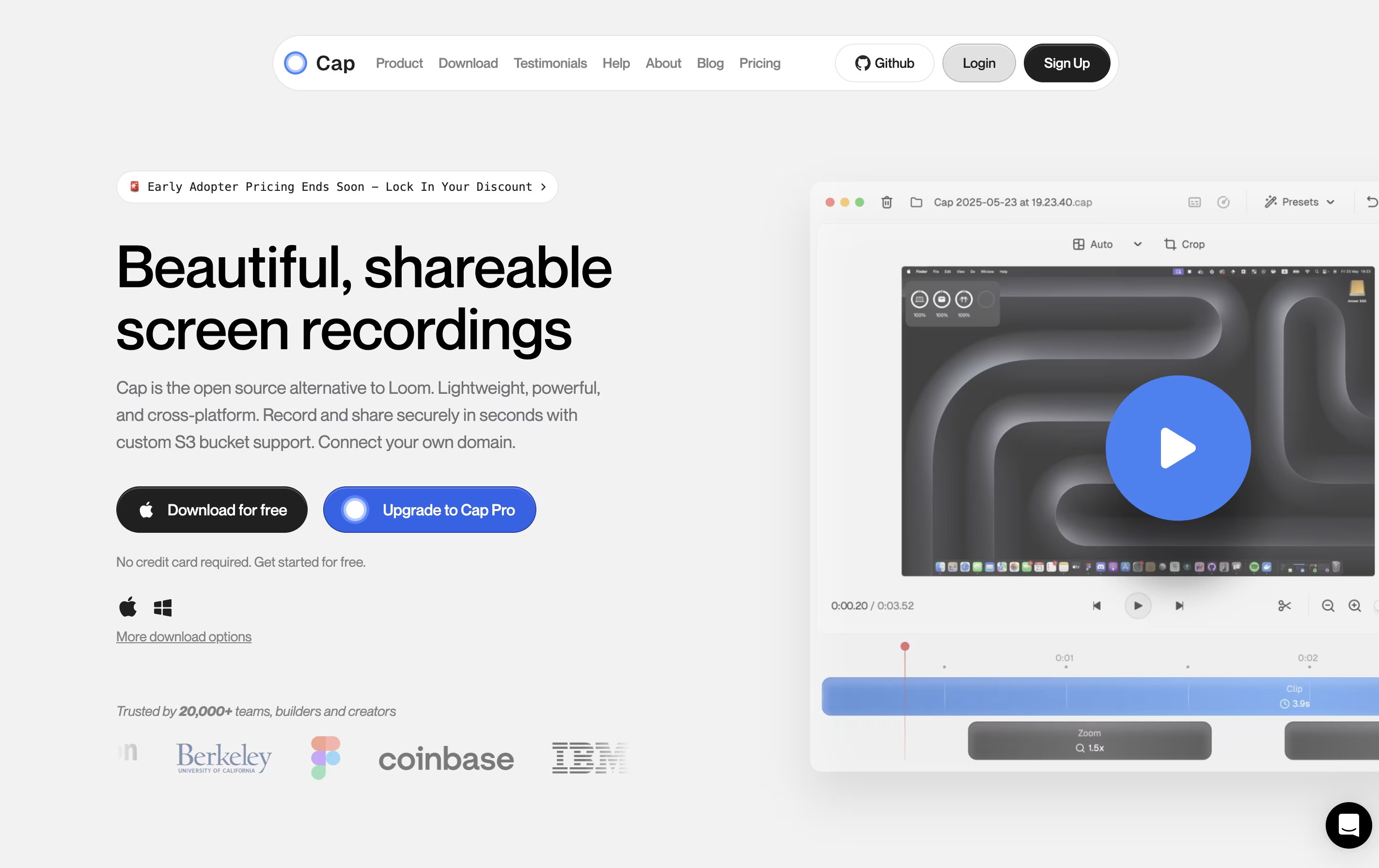
The tool includes AI-powered features that automatically create titles, summaries, and chapters for each recording. You can record in up to 4K resolution at 60 frames per second, with separate tracks for screen, webcam, and audio.
Cap is completely open source, meaning you can see how it works and even host it yourself. It supports both quick team communication and high-quality content production in one application.

Screencastify is a screen recording extension built for Chrome browsers. It lets you capture anything on your screen with just a few clicks. You can record a single browser tab, your entire desktop, or just your webcam.
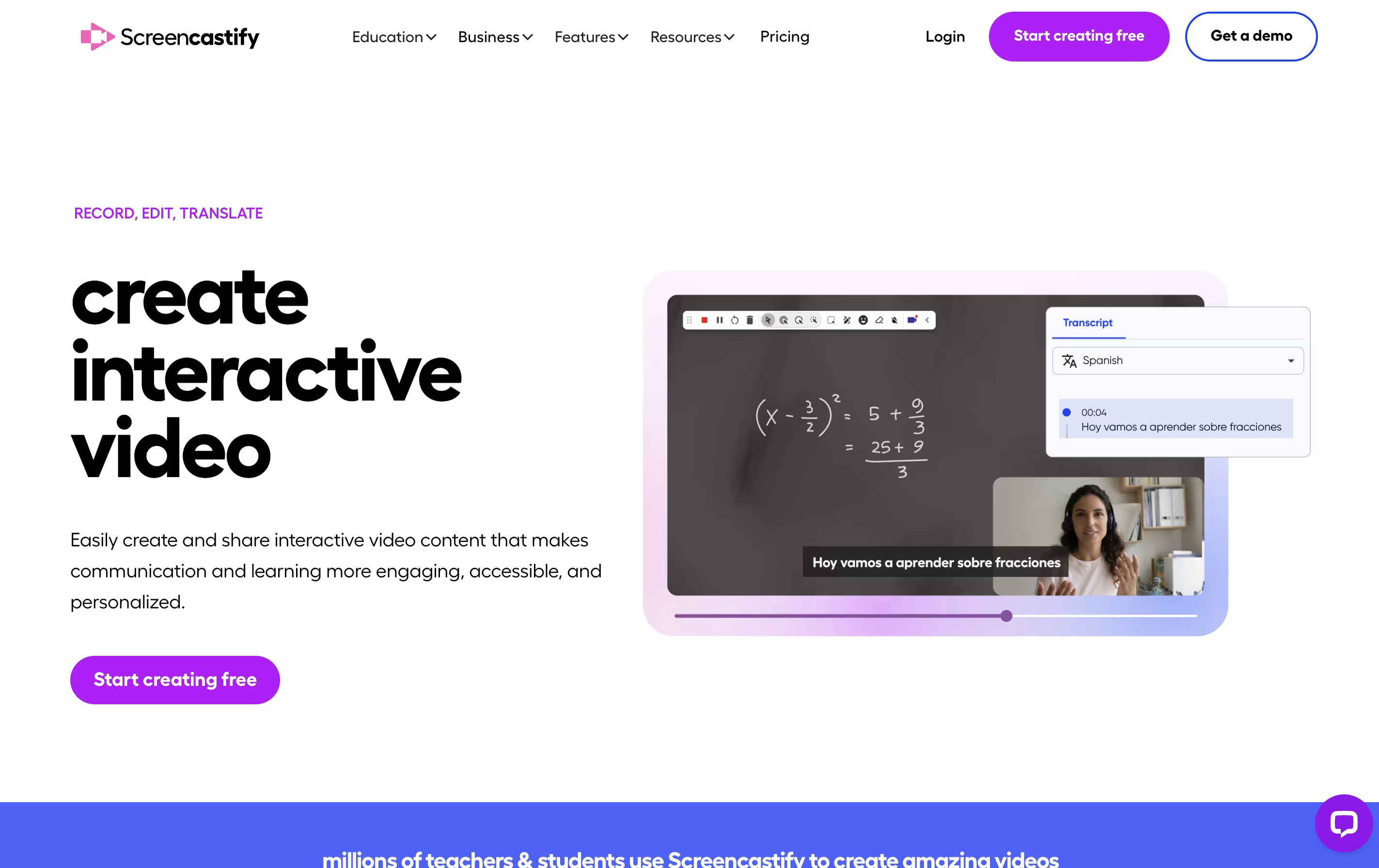
The tool includes built-in editing features so you can trim videos, add text, and merge clips without using separate software. It also has interactive features like adding questions and polls to your videos, making it great for teaching and training.
Your recordings save directly to Google Drive, and you can share them through links, upload to YouTube, or export as MP4 files. The Pro version adds advanced features like AI-powered editing, automatic captions, and translations into many languages.
ScreenPal is a complete video creation platform that combines screen recording, video editing, and hosting in one place. You can record your screen, webcam, or both together with audio narration. The tool includes drawing tools to highlight important parts while recording.
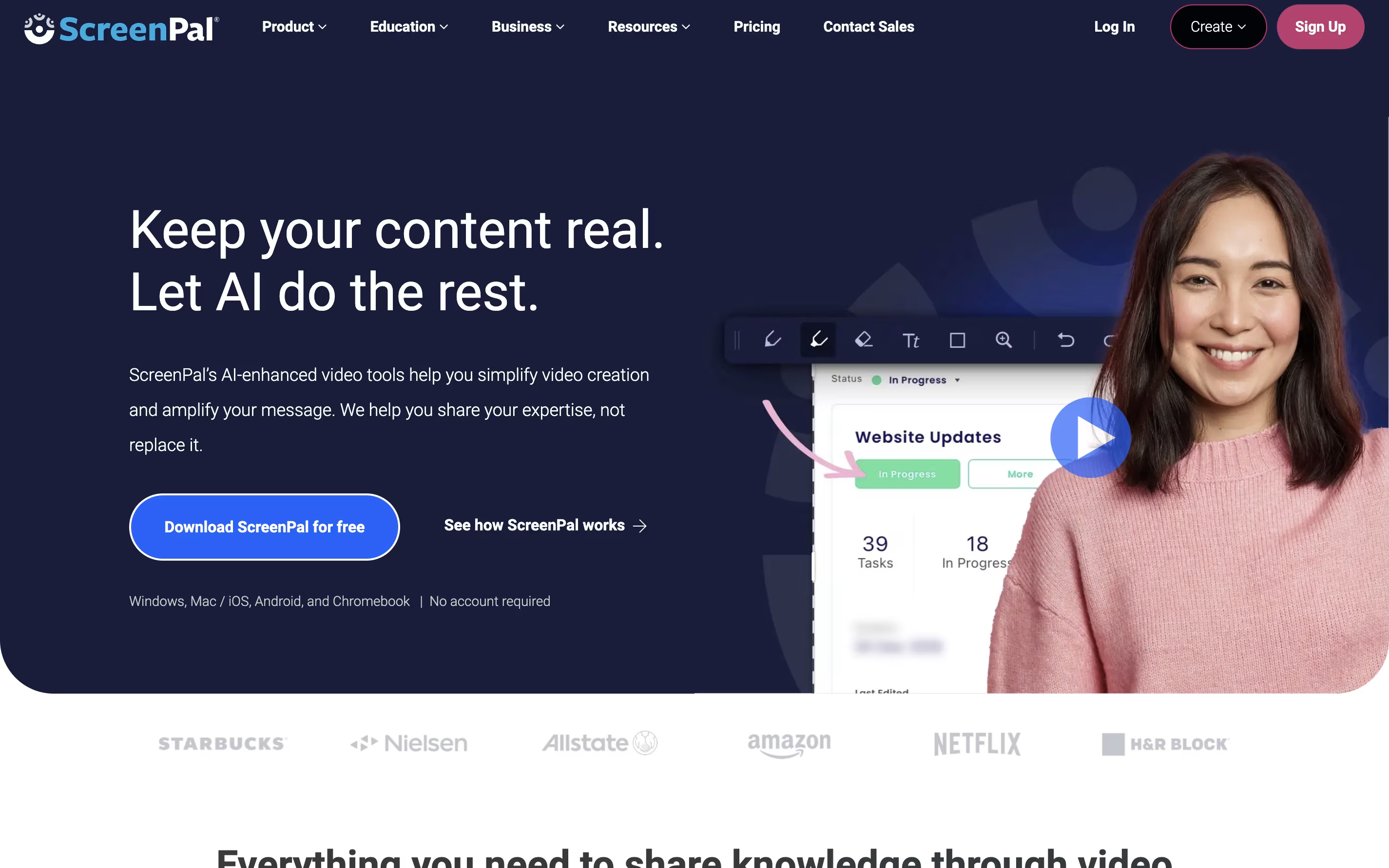
After recording, you can edit videos with cuts, trims, text overlays, and transitions. The platform also includes AI features like automatic captions, transcriptions, and text-to-speech narration. You can add quizzes and interactive elements to your videos.
ScreenPal offers cloud hosting where you can store unlimited videos and share them with secure links. The free version includes basic features with a 15-minute recording limit on desktop. Paid plans unlock unlimited recording, advanced AI tools, and premium editing features.
Camtasia is a desktop software that records your computer screen and edits the footage into finished videos. You can capture everything happening on your screen, add your webcam feed, record voice narration, and include system audio all at the same time. Each element records on its own track, giving you complete control when editing.
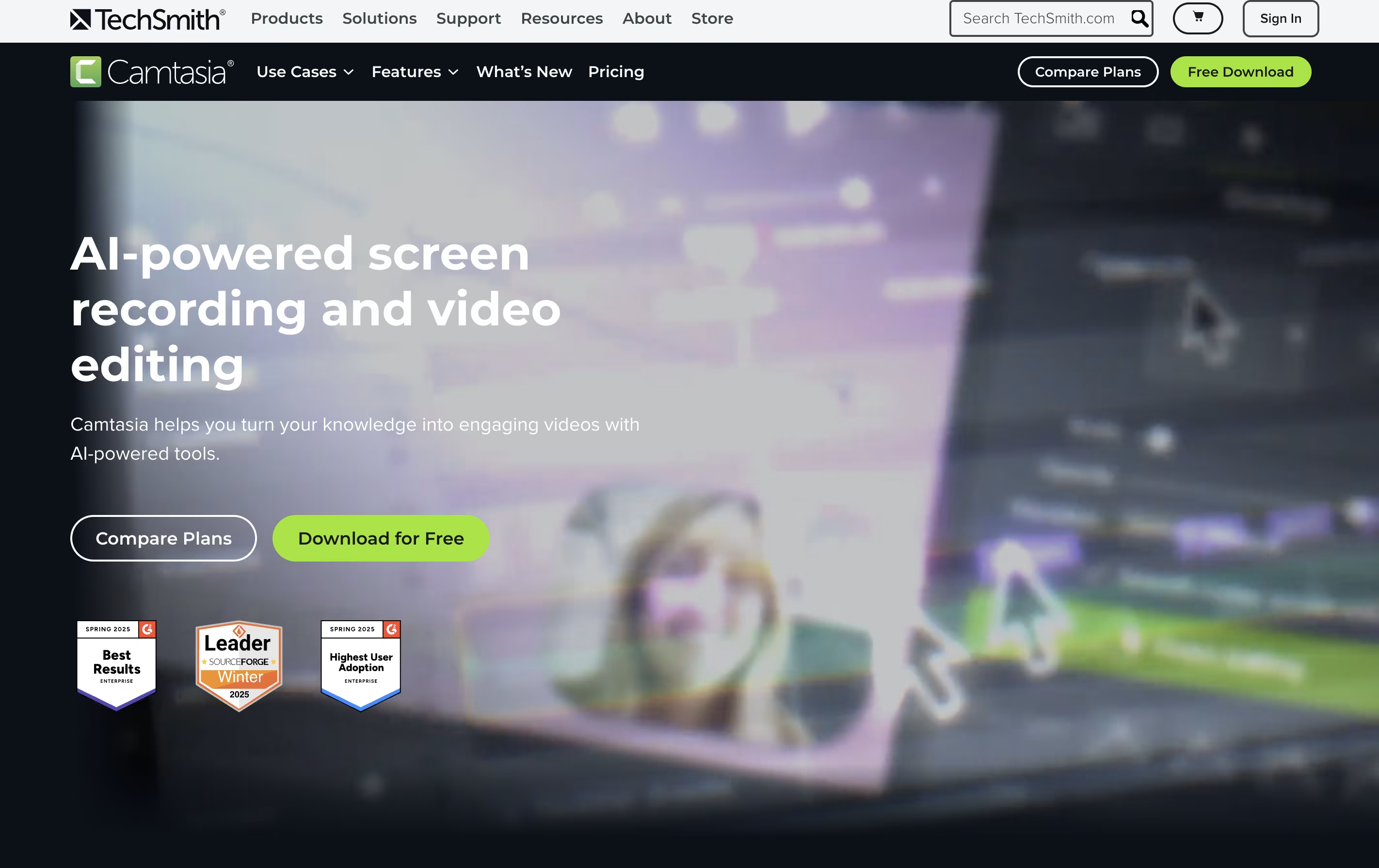
The software comes with AI-powered tools that help create scripts, generate voiceovers, remove background noise, and produce captions automatically. You also get access to millions of royalty-free images, videos, and music tracks. Camtasia works on both Windows and Mac computers, and now includes a free web version for quick recordings. The editing interface uses simple drag-and-drop actions, making it accessible for beginners while still offering advanced features for experienced creators.
CleanShot X is an all-in-one screenshot and screen recording application designed for macOS. It goes far beyond basic screen capture by offering professional editing tools, cloud storage, and intelligent features that save time and improve the quality of your captures.
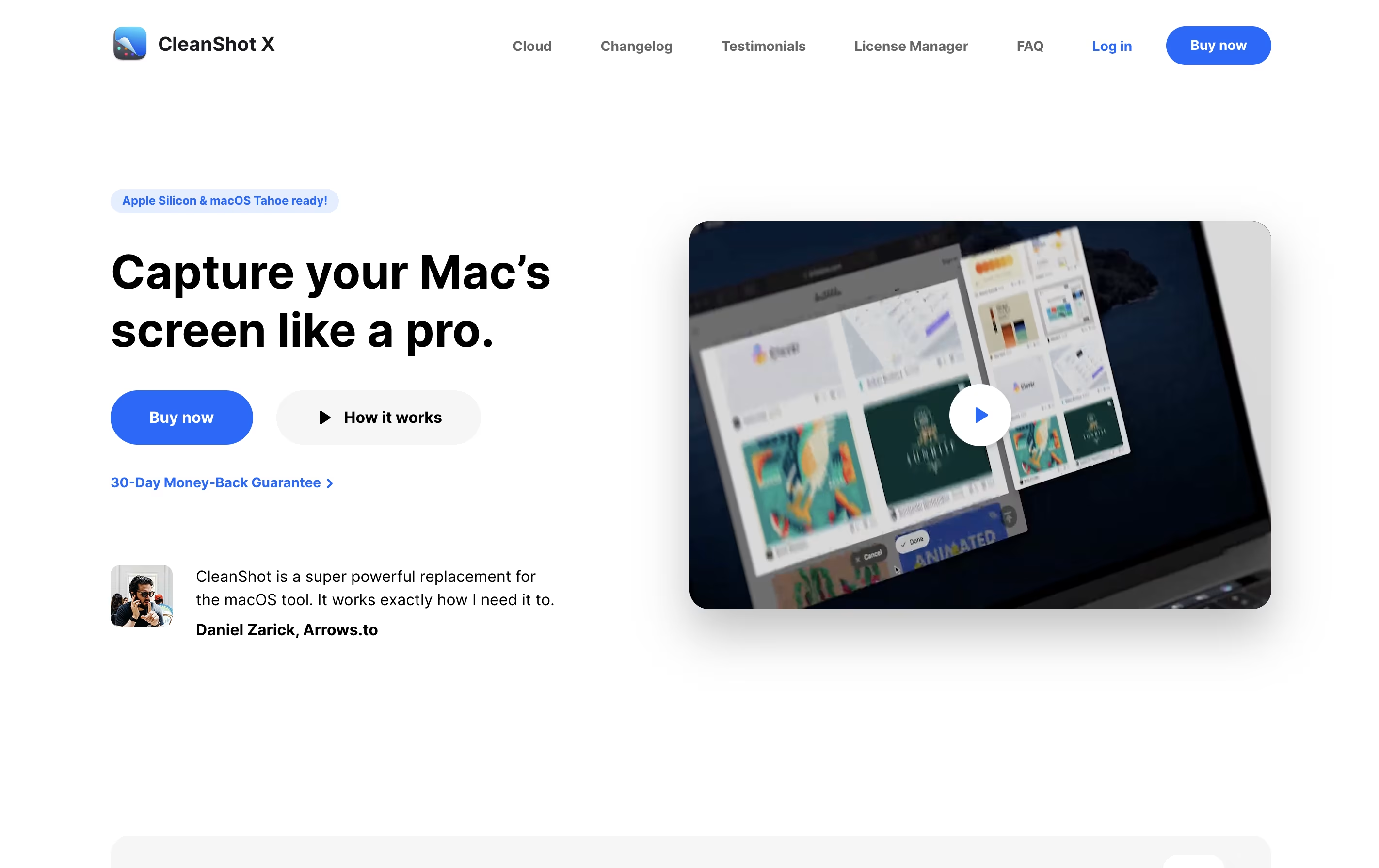
You can take screenshots of specific areas, full screens, windows, or even entire scrolling pages. The app includes a built-in editor with annotation tools like arrows, text, shapes, highlights, and blur effects. It can also hide desktop icons automatically, add custom backgrounds, and freeze your screen to capture tricky elements like dropdown menus.
For screen recordings, CleanShot X lets you create videos or GIFs with system audio, mouse clicks, and keyboard shortcuts visible. Everything integrates smoothly with its cloud service for instant sharing via links.

Editing, recording, and translating video usually means jumping between several different apps. RecCloud tries to fix that by putting AI transcription, subtitles, translation, dubbing, and video generation next to basic screen recording and editing in one browser based platform.
Speech is converted to text in over 99 languages, subtitles can be created and translated automatically, and full videos can be dubbed using cloned voices with lip sync. For creating new content, the AI Video Generation Agent can write a script, add voiceover, and build a video from just a short prompt.
Pricing is based on credits, which are spent as you use these AI tools. The Weekly plan is $15 for 300 credits, and Basic Annual works out to $4 a month, billed yearly at $48, for 3,000 credits.
Pro Annual costs $4.92 a month, billed at $59 a year, and includes a promotional bonus taking the yearly total to 6,000 plus 2,000 credits. Business Annual, at $188 a year, adds 24,000 credits, 100 GB storage, 10 concurrent tasks, batch processing, and commercial usage rights.
Additional credits and storage can be purchased separately, and a 7 day money back guarantee covers every plan.
OBS Studio is a free software that helps you record your screen or stream live video to the internet. You can use it to capture games, presentations, tutorials, or any activity on your computer. The software lets you add your webcam, microphone, images, and other elements to create professional-looking broadcasts.
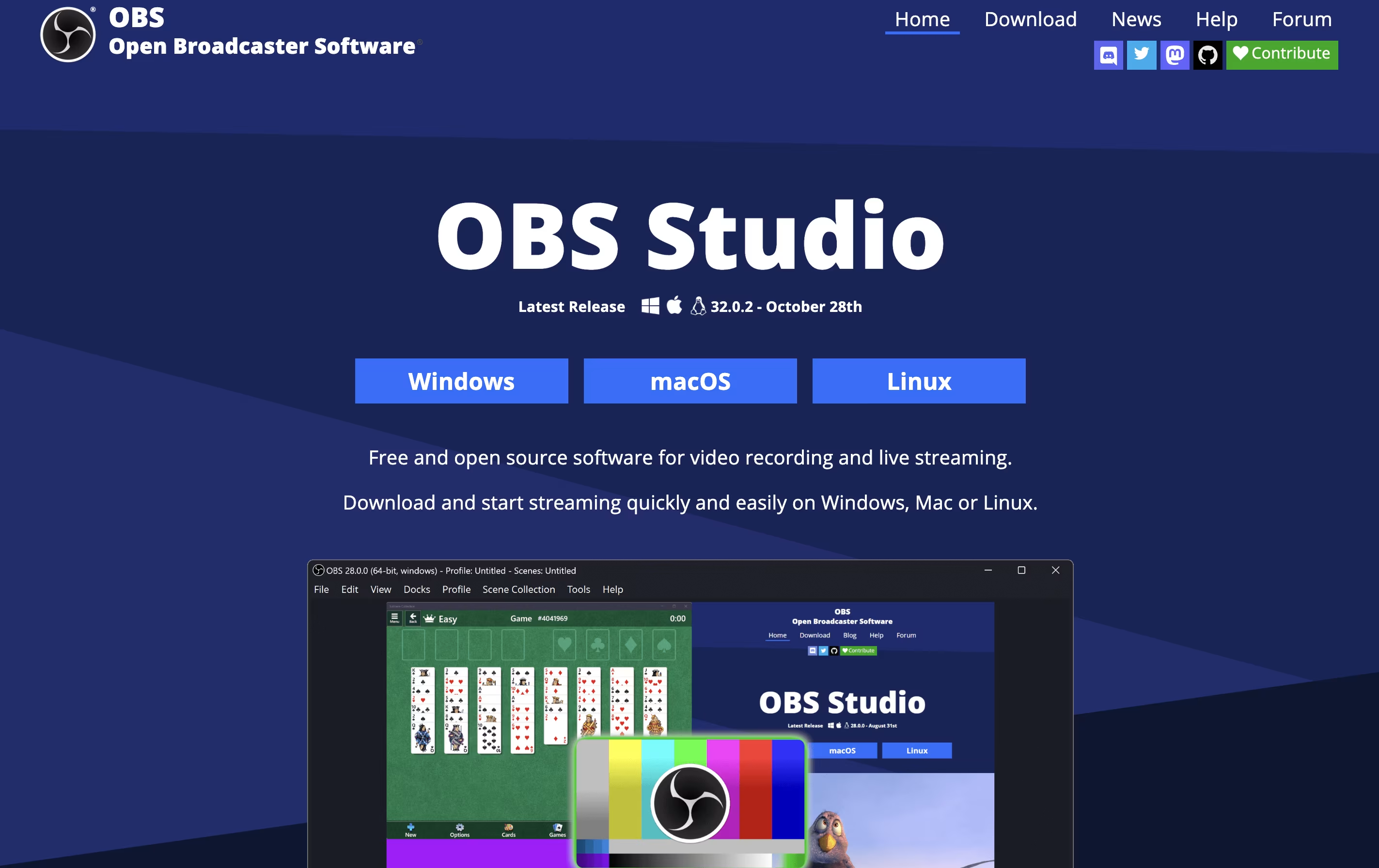
Unlike simple screen recorders, OBS Studio offers advanced features like scene switching, audio mixing, and custom transitions. You can organize different layouts for various parts of your stream and switch between them smoothly. The software also includes tools for adjusting video quality, managing audio levels, and adding filters.
Being open-source means the software is constantly improved by a community of developers. It is trusted by millions of users worldwide for both personal and professional streaming needs.
Dadan is a tool that lets you create and share video messages quickly and easily. You can record your screen, camera, or both together, then edit and share the video without downloading files or using complicated software.
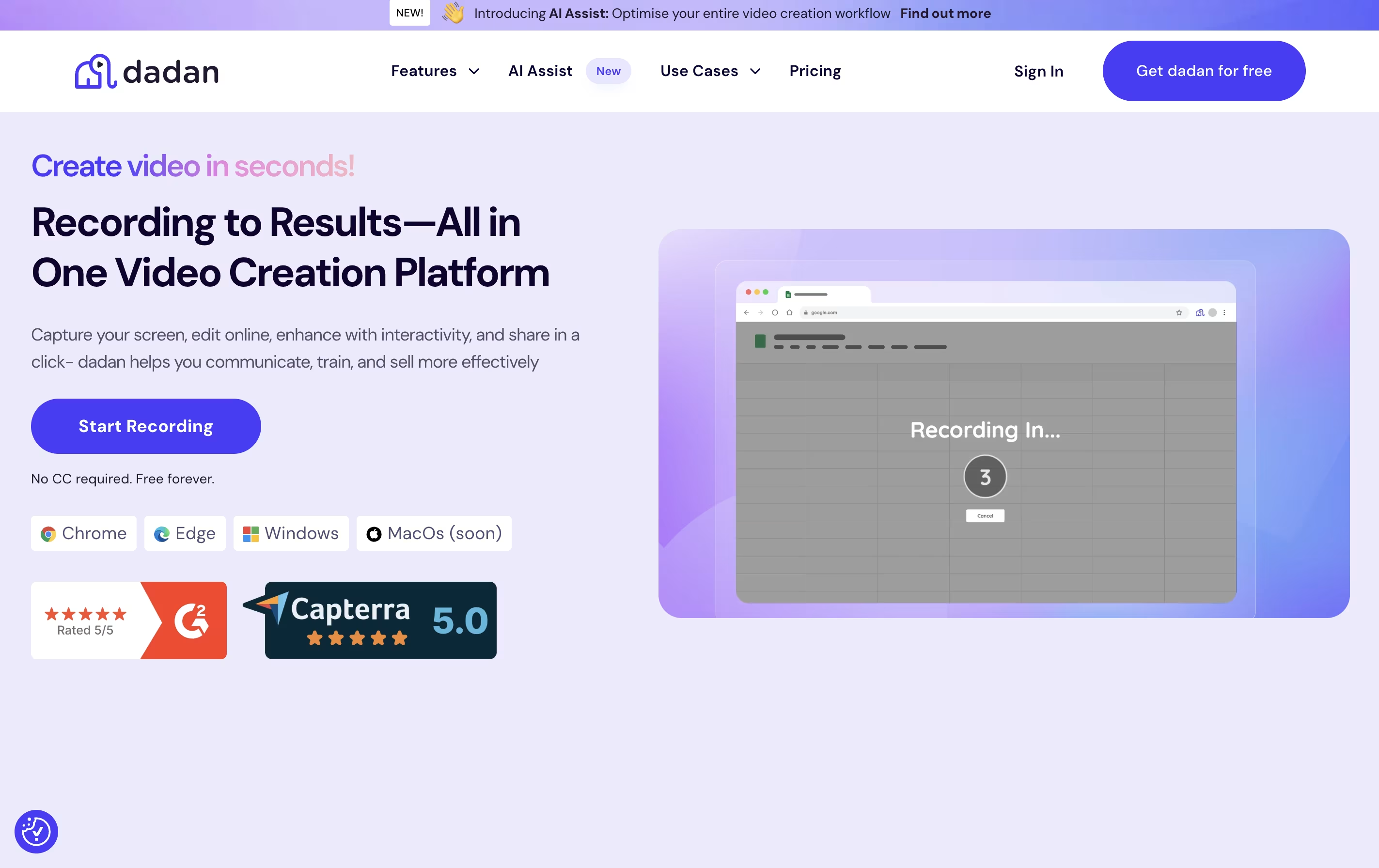
The platform uses AI to help you work faster. It can automatically create transcripts of your videos, generate titles and descriptions, add chapters, and create meeting notes. You can also add interactive features like forms, quizzes, and polls directly into your videos to keep viewers engaged.
Dadan works through a browser extension, desktop app, or mobile app. When you share a video, viewers get a link they can watch on any device. They can leave comments, react with emojis, or even reply with their own video message.

Kite is a screen recording tool that creates professional product videos automatically. You record your software or app, and Kite handles the rest. It watches where your cursor moves and automatically zooms in on important actions with smooth animations. Your recording appears on realistic 3D models of devices like laptops or phones.
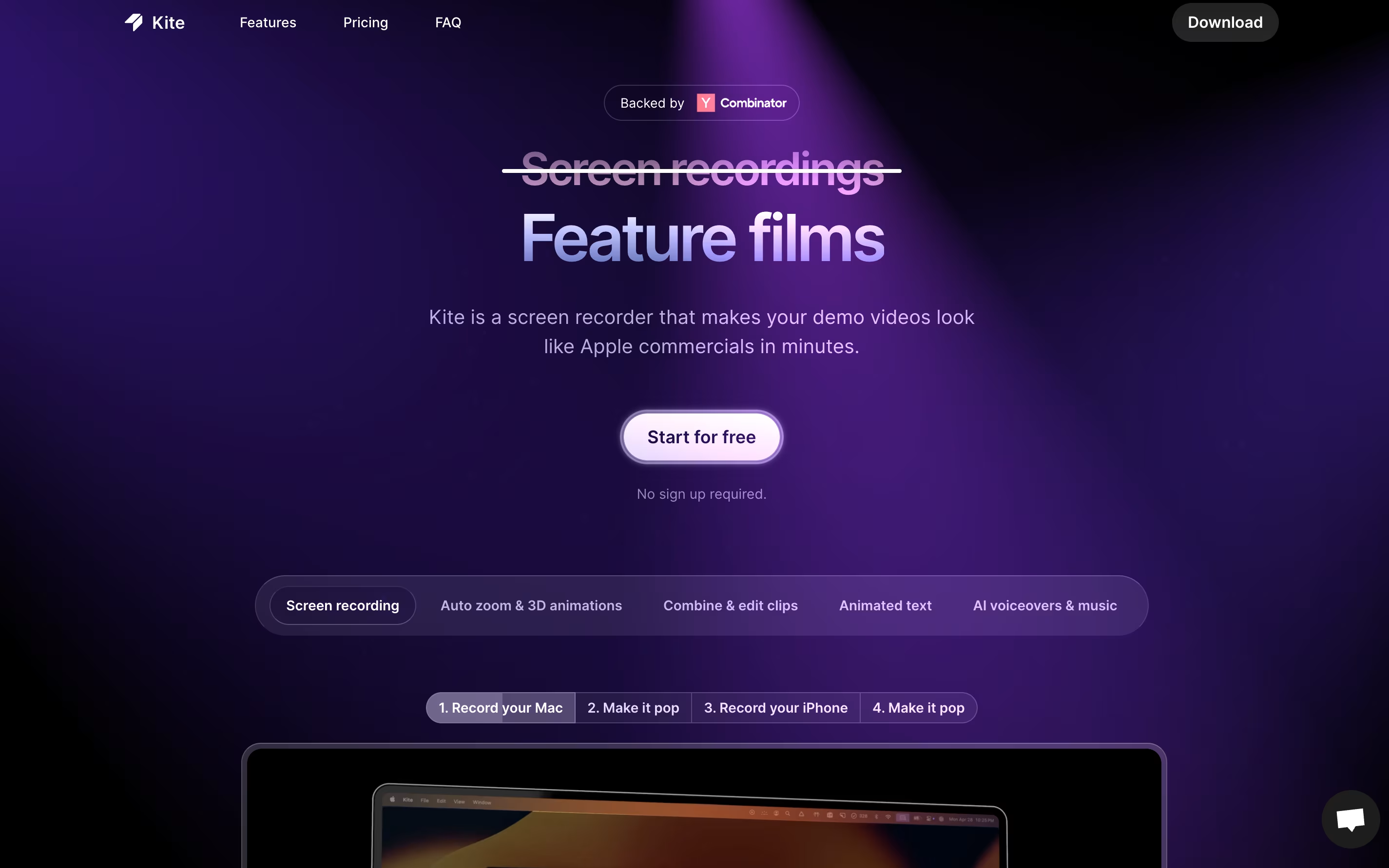
The tool includes features for adding animated text, music tracks, and AI voiceovers. You can upload your brand colors, fonts, and logos to keep everything consistent. Kite also offers ready-made templates to help you start quickly.
The platform works entirely in your web browser, so there is no software to install. It offers a free version with most features available, though videos will have a watermark after your first project.

ShareX is a Windows application that captures your screen and helps you share content online. You can take screenshots of your full screen, a specific window, or any custom area you select. The software also records screen videos in different formats, including regular videos and animated images.
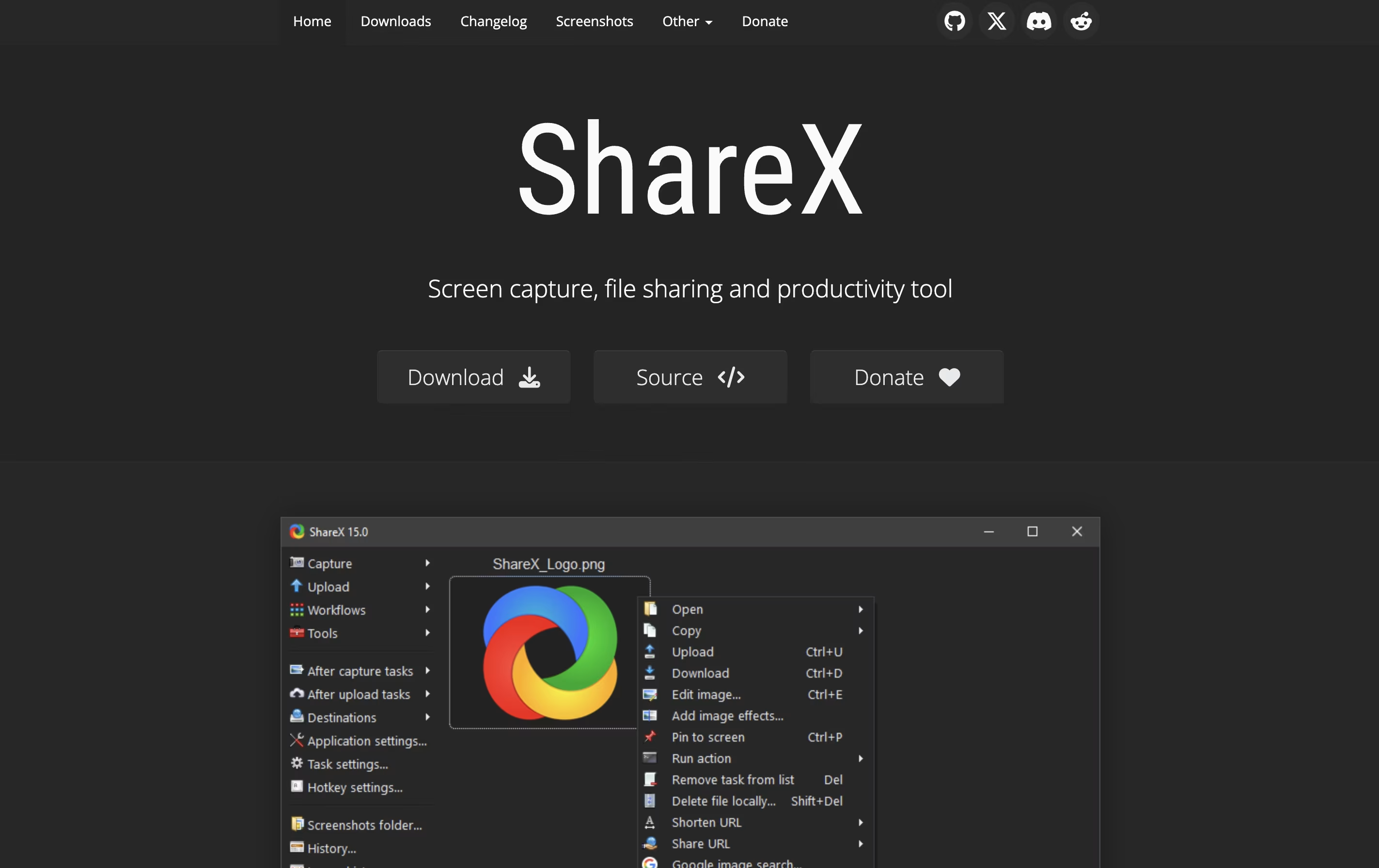
What makes ShareX different from simple screenshot tools is its extra features. It includes a built-in image editor where you can add arrows, text, shapes, and effects to your captures. The software can automatically upload your screenshots to image hosting sites like Imgur, cloud storage like Google Drive, or your own server.
ShareX is lightweight, runs quietly in the background, and uses keyboard shortcuts for quick access. Everything is customizable to match how you work.

Screenity is a Chrome browser extension that records your screen and adds helpful tools for creating better videos. You can record any tab, a specific area, your desktop, applications, or your camera with your microphone or system audio.
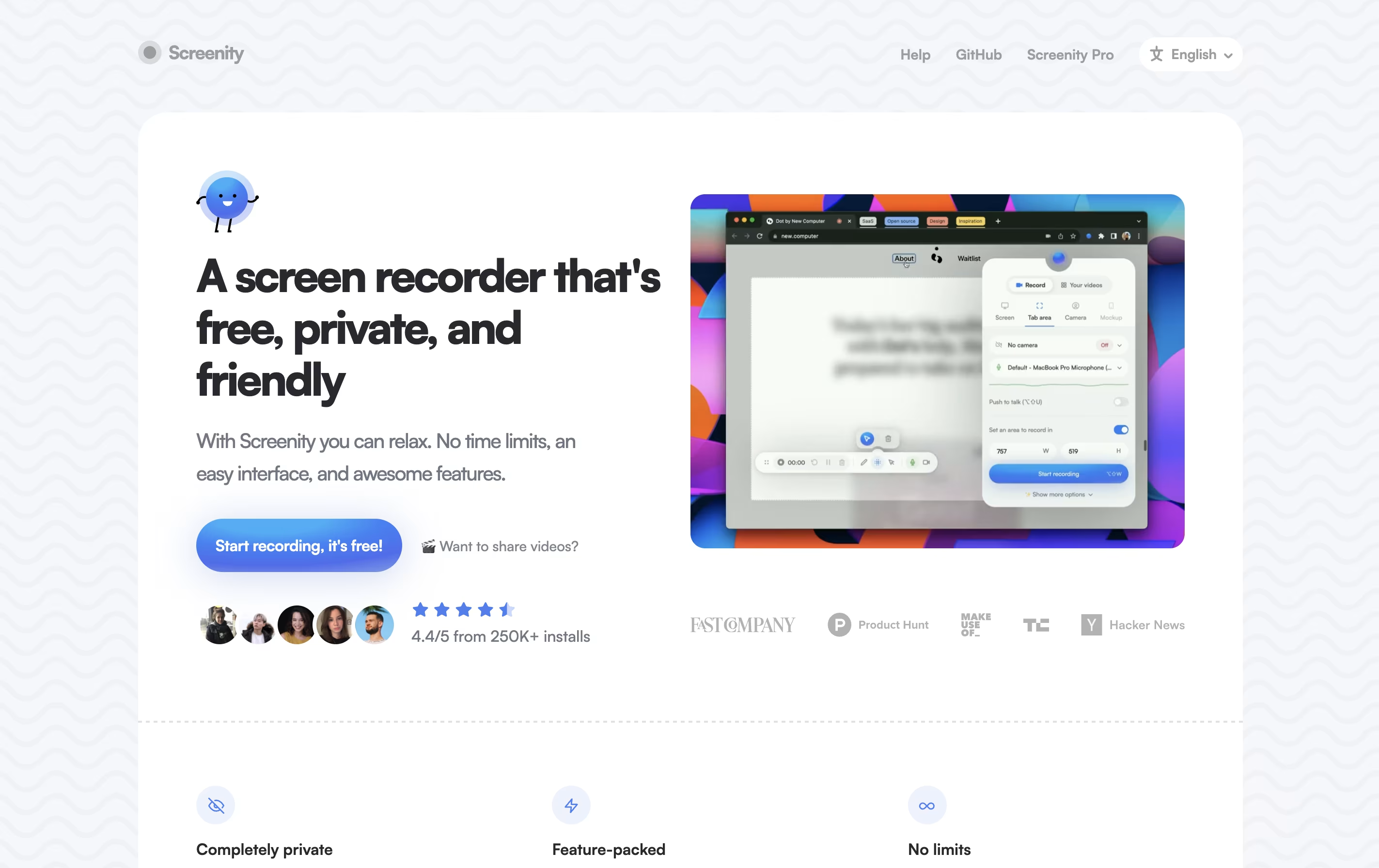
What makes Screenity special is its annotation features. While recording, you can draw, add text, arrows, and shapes directly on your screen. It also highlights your clicks and cursor, which is helpful for tutorials. After recording, you can edit videos with trim, crop, and audio tools.
The extension is open source, meaning anyone can view and modify its code. All recordings stay on your computer unless you choose to save them elsewhere, keeping your content completely private.
Kap is a desktop screen recording application exclusively for Mac computers. It allows you to capture your screen activity and save it in different formats like GIF, MP4, WebM, or APNG. The application lives in your menu bar and activates quickly with a keyboard shortcut.
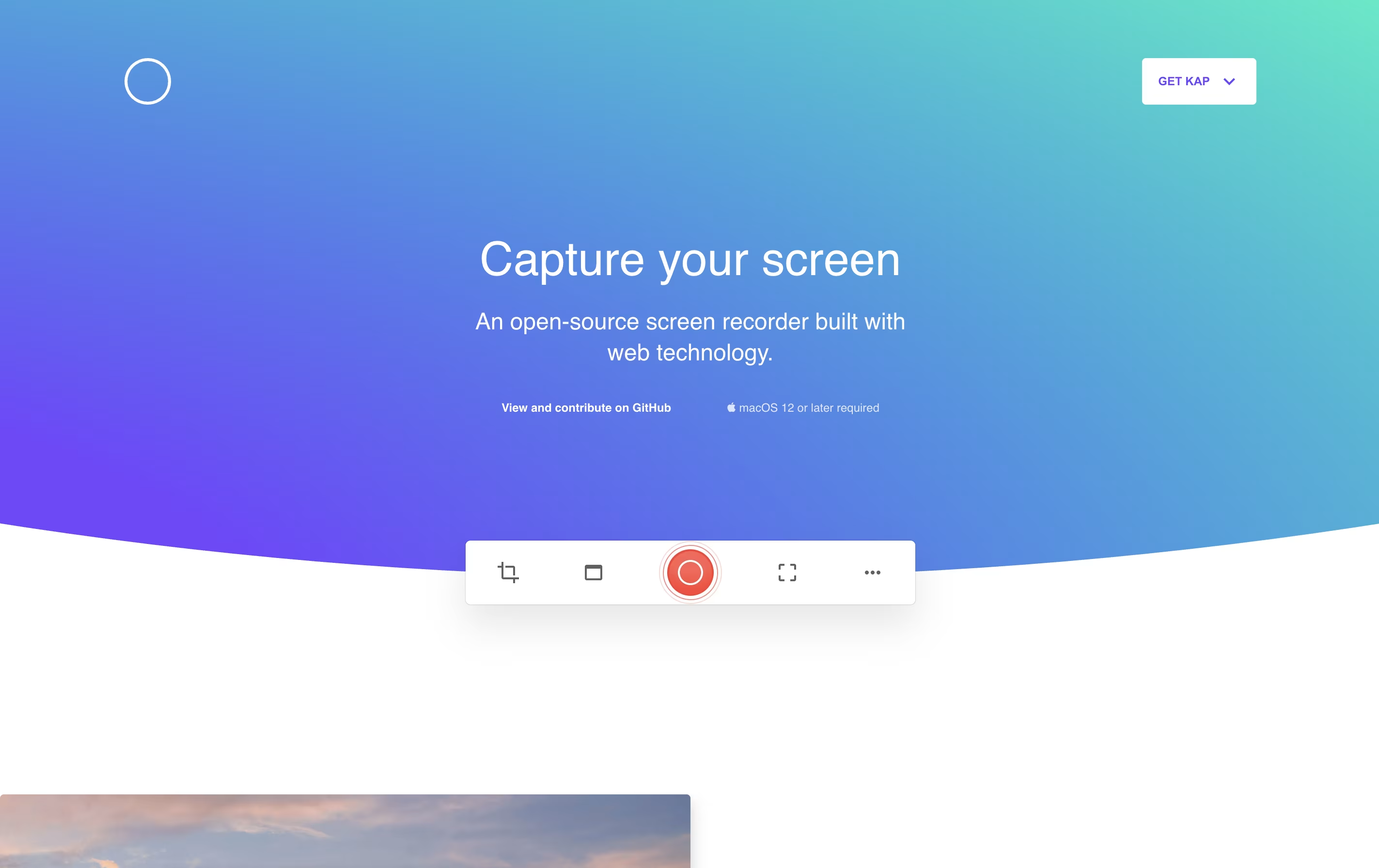
Unlike heavy commercial screen recorders, Kap focuses on being fast and lightweight. It uses minimal system resources while still producing high-quality recordings. The tool includes basic editing features like trimming and the ability to highlight mouse clicks during recordings.
One standout feature is its plugin system, which lets you extend functionality. You can add plugins to upload directly to services like Giphy or share your recordings instantly. Being completely free and open-source, anyone can use it without limitations.
Tight Studio is a video editor built specifically for creating product demos from screen recordings. You can record your screen and the tool automatically enhances it with professional touches. Unlike traditional video editors that require technical skills, Tight Studio uses AI to handle the complex work for you.
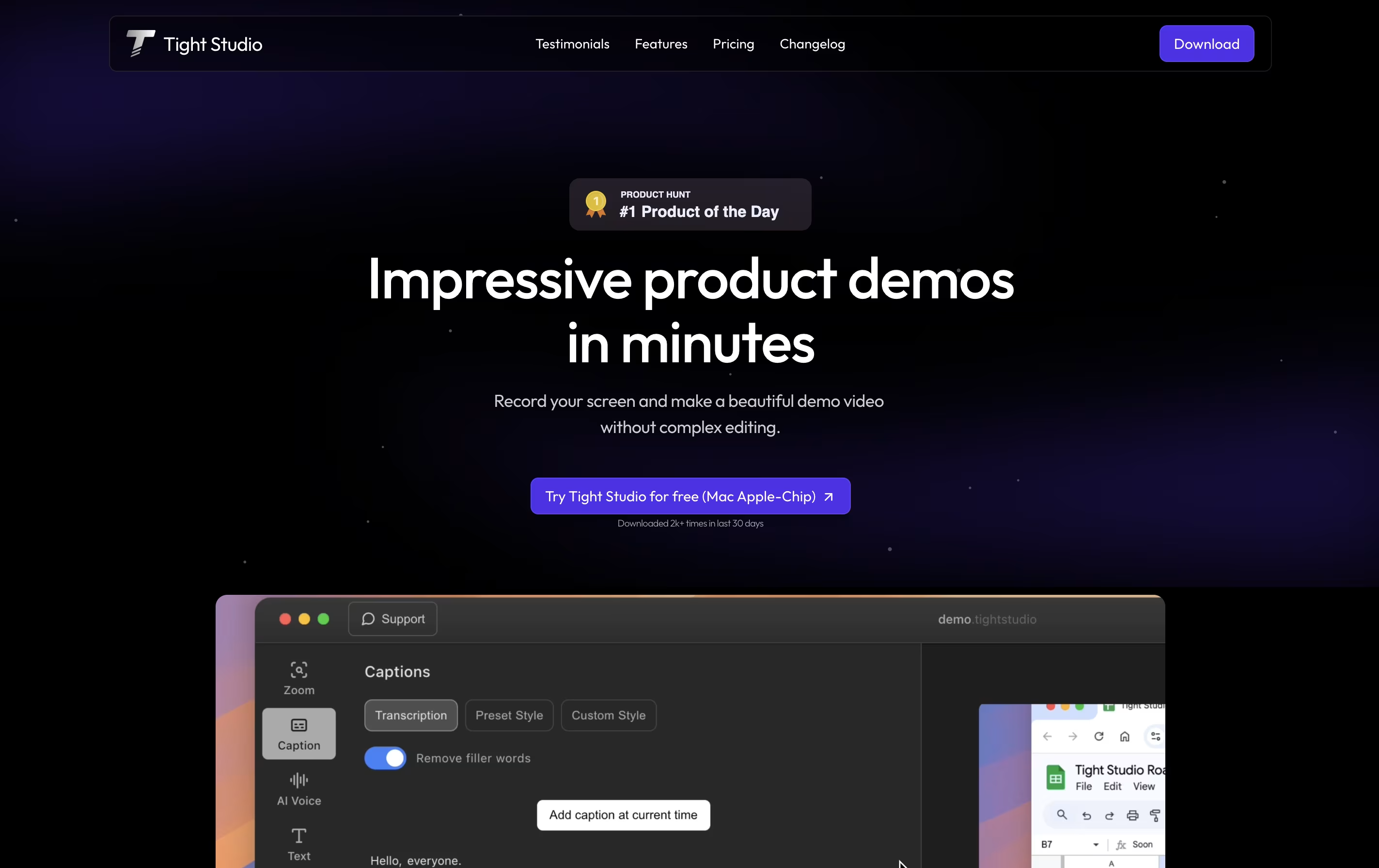
The platform focuses on making demos look polished without manual editing. It automatically zooms into important actions on your screen, adds styled captions for viewers watching without sound, and can replace your voice with clear AI narration. You can also add text overlays, import other media, and choose background music from their library.
There is a free version for basic needs and a Pro version with advanced AI features and no watermark on exports.
NeetoRecord is a recording tool that captures your computer screen and webcam at the same time. You can use it to create software demos, explain processes, give feedback, or record training materials. Unlike traditional screen recorders, it automatically generates useful features for your videos.
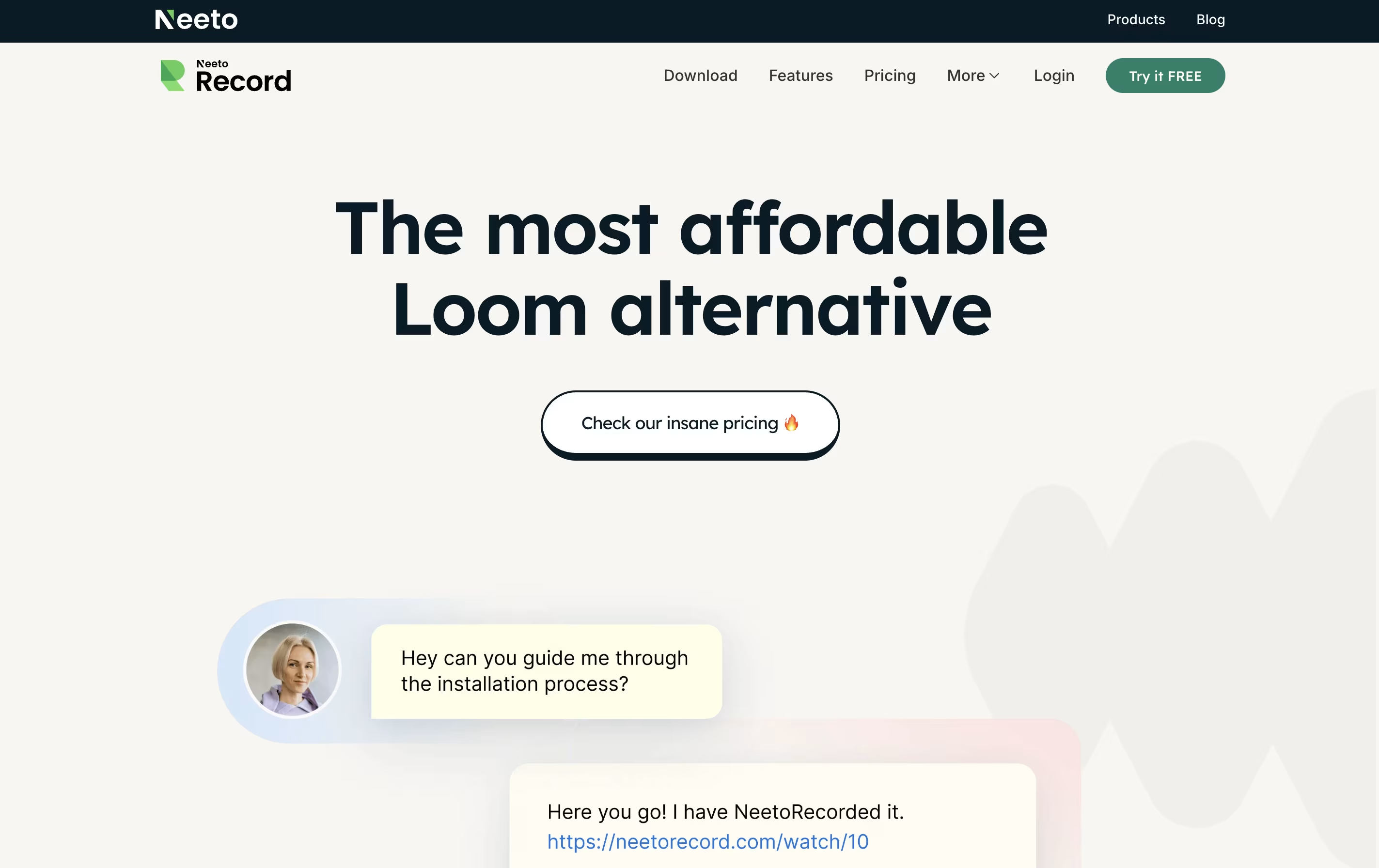
When you finish recording, the tool creates titles based on your content, adds chapters for easy navigation, and provides a written transcript. You can then share your video through a simple link without needing to download or upload files anywhere. The video player can be customized to match your brand colors and style.
Both free and paid versions are available, with the main difference being the length of videos and monthly limits on recordings.
1001 Record is a screen recording application designed for Mac computers. It lets you capture everything happening on your screen in excellent quality. You can record the full screen, a specific window, or just a selected area that you choose.
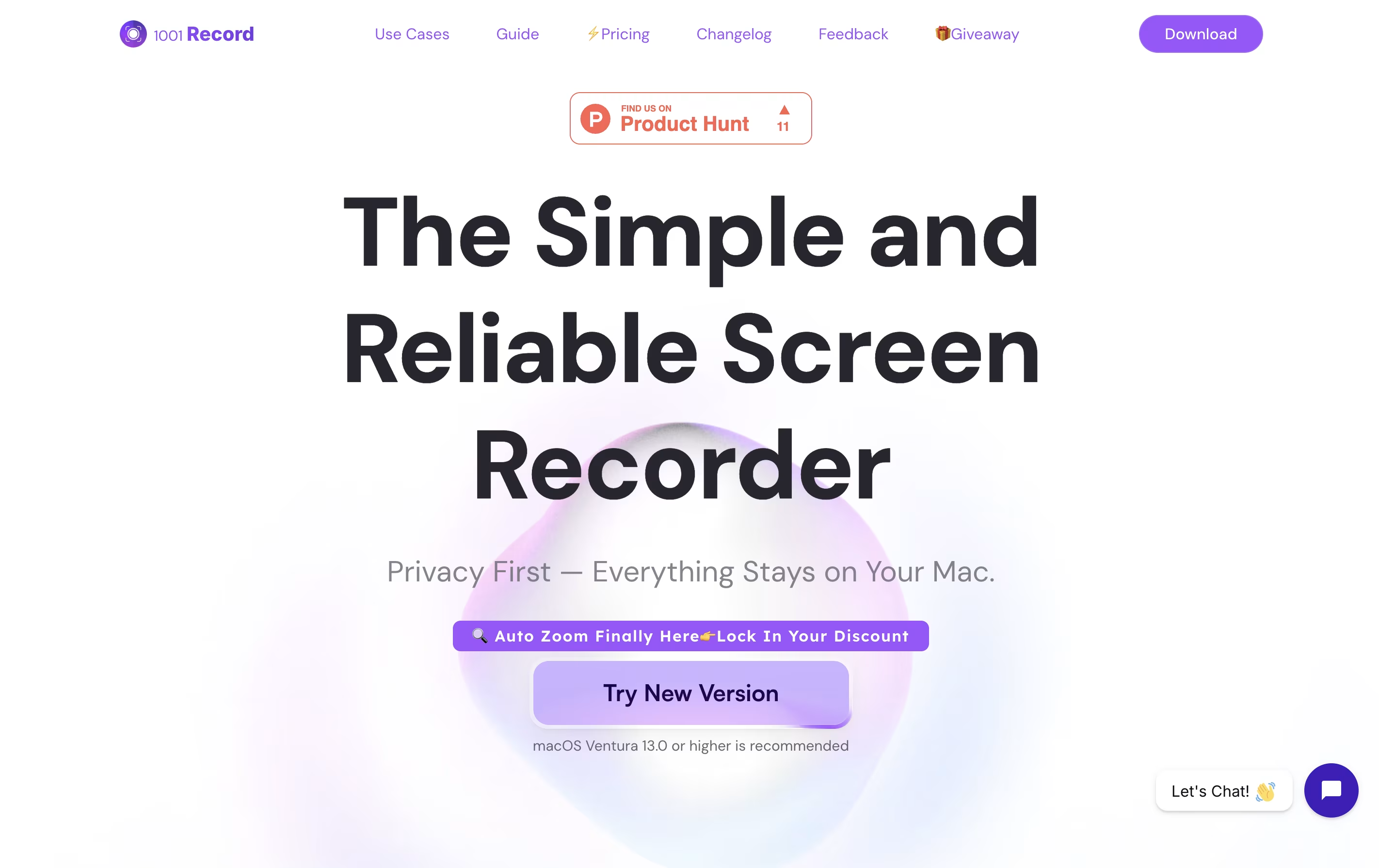
The tool supports different video quality options including 720P, 1080P, 2K, and even 4K resolution. You can also choose your frame rate from 10 to 60 FPS for smooth video. The app can record system audio, microphone input, and your camera at the same time.
What makes it special is its stability and simple design. There are no watermarks on your videos, no time limits, and recordings stay on your computer. It also includes annotation tools to add text, shapes, and drawings while recording.
Flashback is a desktop application that records everything happening on your Windows screen and turns it into a video file. You can capture full screen, a specific window, or a custom area. The tool also records system sounds and microphone audio at the same time.
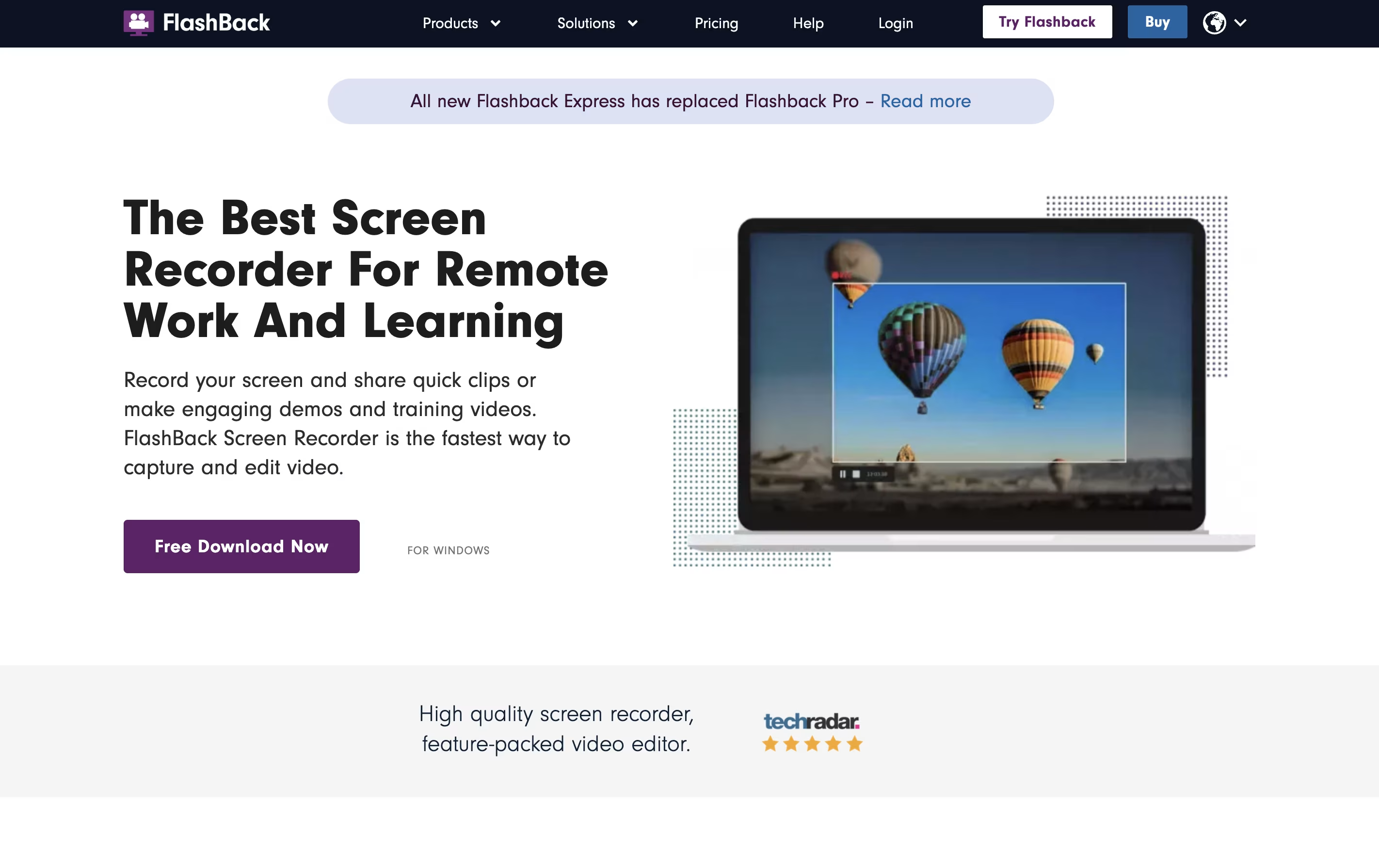
What makes Flashback different is its complete editing suite. After recording, you can trim clips, add text and arrows, blur sensitive information, and apply transitions. The newest version includes AI features that create captions automatically and can change your voice to sound clearer.
There are two main versions: Flashback Express is free with all basic features, while paid plans add more storage credits and advanced tools. The software saves videos in common formats like MP4, AVI, and WMV.
Kommodo is a recording platform that captures your screen, voice, and webcam, then transforms recordings into searchable documents. Unlike basic recorders, it includes AI features that work in the background to organize and analyze your content.
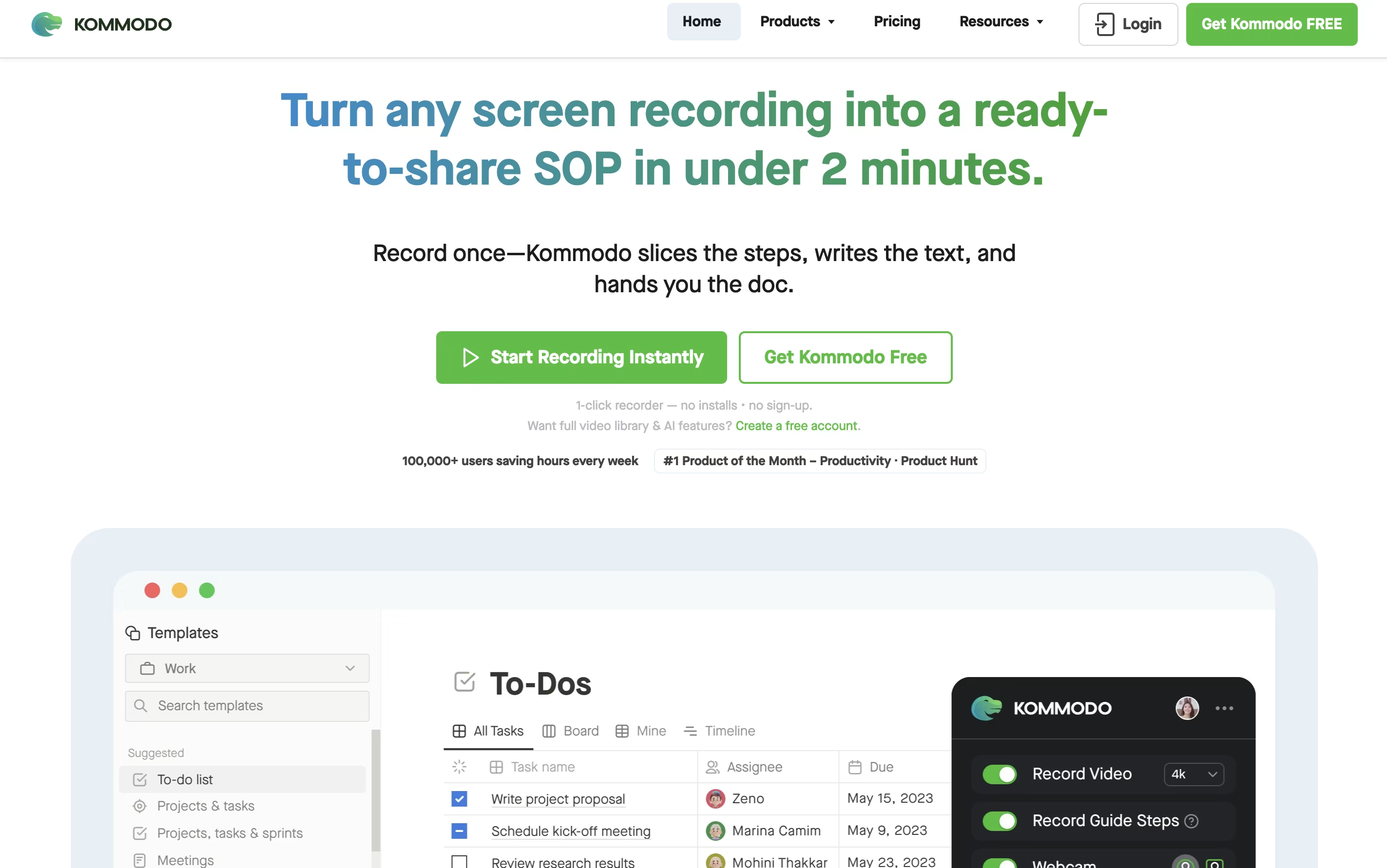
The tool automatically generates transcripts for every video, allowing you to search across your entire library instantly. It creates chapter markers, summaries, and action items from meetings without manual effort. You can also build step-by-step guides as you record, perfect for training materials and documentation.
Kommodo works across browsers, desktop apps, and mobile devices. The free version includes unlimited recording time with 60 days of access. Paid plans unlock permanent storage, unlimited AI features, custom branding, and advanced collaboration tools for teams.